
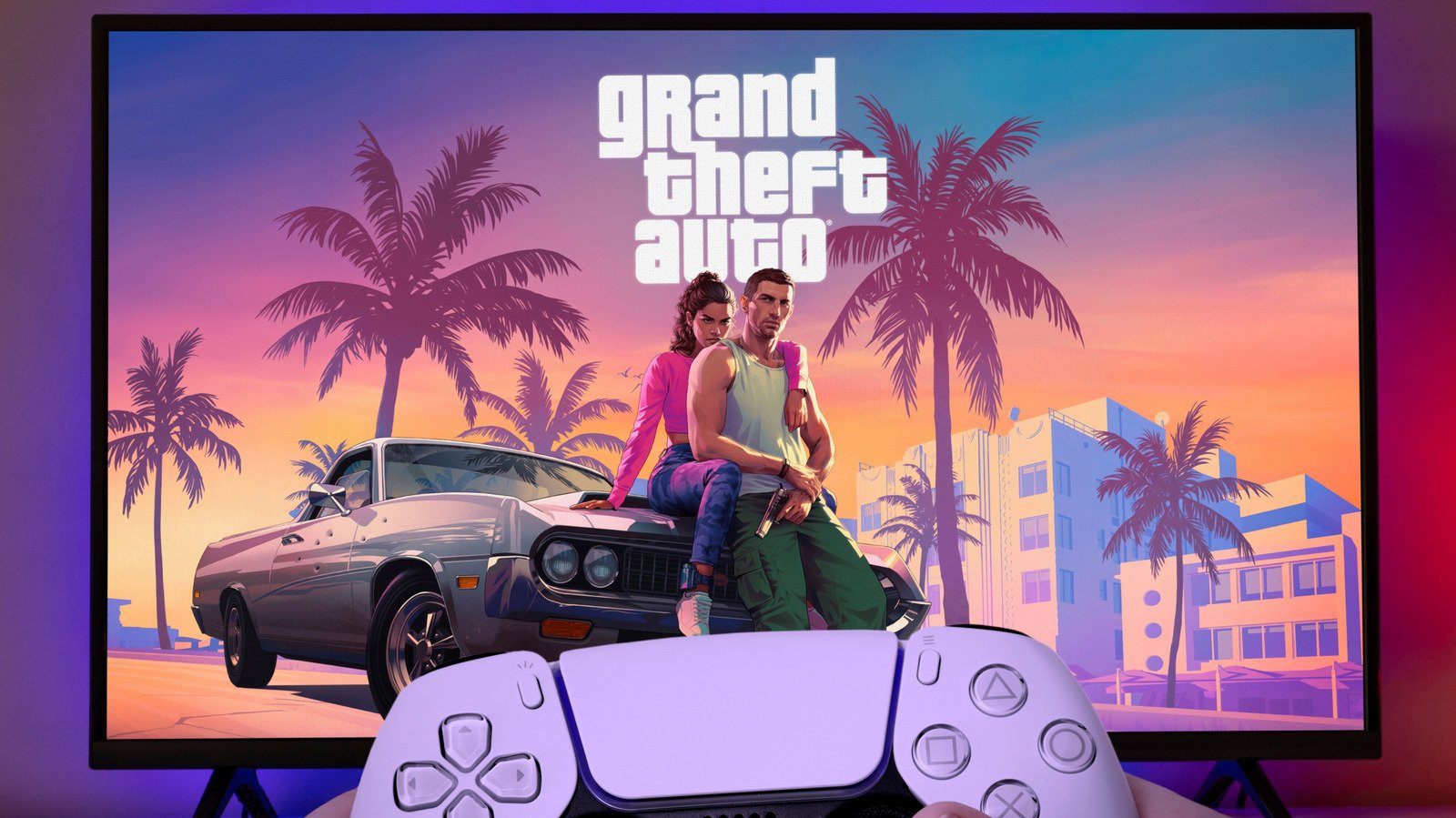

How to Prepare Your PlayStation 5 for Grand Theft Auto VI
Grand Theft Auto VI is set to push the boundaries of open‑world gaming, and its visual fidelity will likely demand every bit of processing power your console can muster. Before you dive into the neon‑lit streets of Leonida, take a few minutes to adjust a handful of system settings that can dramatically improve picture quality, smoothness, and immersion.
Match Your Refresh Rate with VRR and 120Hz Output
Variable Refresh Rate (VRR) allows your TV to sync its refresh rate with the frames the PS5 produces, reducing tearing and stutter during intense sequences. To enable VRR, navigate to Settings → Screen and Video → Video Output → VRR and toggle it on. For games that don’t natively support VRR, turn on Apply to Unsupported Games to help stabilize the frame rate. While you’re there, make sure ALLM (Auto Low‑Latency Mode) is enabled so your TV automatically switches to its game mode when the console outputs a VRR signal.
The second related setting is 120Hz Output. Even if GTA VI is capped at 30 frames per second on consoles, sending a 120Hz signal ensures the display can handle higher‑rate content later and keeps the image evenly paced. Go to Settings → Screen and Video → Video Output → 120 Hz Output and turn it on, making sure your HDMI cable and port are HDMI 2.1 compatible.
Set HDR the Right Way
Grand Theft Auto VI will transition from dark, neon‑filled nightclubs to bright Florida sunlight, making high dynamic range essential. First, confirm that your TV’s HDMI input has HDR enabled. On the PS5, open Settings → Screen and Video → Video Output → HDR and choose Always On to ensure all content is converted to HDR, or On When Supported if you prefer standard dynamic range for non‑HDR titles.
For the best results, calibrate the HDR signal. In the same menu, select Adjust HDR and follow the on‑screen prompts. If your television supports HGIG (HDR Gaming Interest Group) mode, activate it so the TV doesn’t apply its own tone mapping on top of the console’s. Perform the calibration in the room where you normally play, and you’ll only need to do it once.
Try 3D Audio
Audio is often an overlooked aspect of immersion, but the PS5’s 3D Audio can add a new layer of realism to GTA VI. By delivering sound from all directions, it helps you locate footsteps, approaching vehicles, and ambient crowds with greater precision.
To enable 3D Audio, plug in a pair of headphones and go to Settings → Sound → 3D Audio (Headphones). Choose Create Personalized 3D Audio Profile and complete the short calibration, or pick one of the five built‑in presets. After the profile is set, turn on Apply Personalized 3D Audio Profile and then enable Enable 3D Audio for Headphones. Note that Bluetooth headphones require a USB adapter, as the console does not support Bluetooth audio directly.
With these system adjustments—VRR/120Hz, HDR calibration, and 3D Audio—your PlayStation 5 will be primed to deliver the best possible experience when Grand Theft Auto VI launches.
Computers, Electronics, Entertainment, Internet, Online, Reference, Gaming, PlayStation, GTA 6